Zoho CRM
Azmarq for Zoho CRM is the Marketplace extension for WhatsApp from Zoho CRM. Install it there, then send to leads, contacts, or accounts. It is not a new Omni HTTP route.
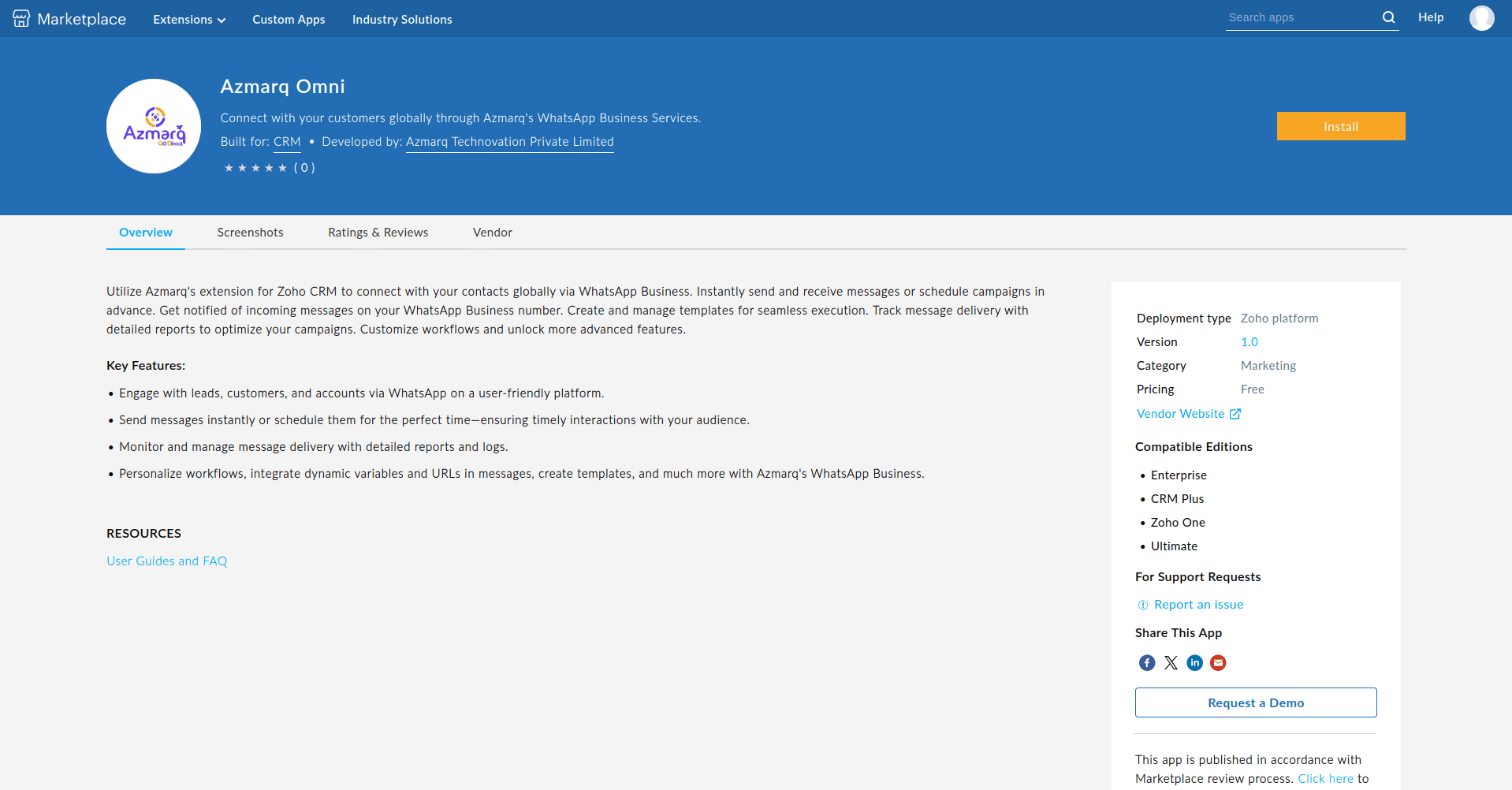
This page is the install walkthrough for the WhatsApp plugin. Listing: free, Zoho platform, version 2.0.
Host
https://api.azmarq.com
$API_BASE_URL for every send.
Auth
apikey
Header on every call. Not Bearer.
Integrations
5 apps
3 custom · 3 HTTP connectors. Apps and custom connects add no new /v1 send path.
Find an integration
Showing 11 of 11.
- ShopifyappAzmarq Sender: abandoned carts, order updates, WhatsApp + SMS + RCS.No POST /v1/shopify
- Google SheetsappWorkspace add-on. Import and run messaging workflows in a spreadsheet.No Sheets HTTP route
- Zoho CRMThis pageappAzmarq for Zoho CRM on Zoho Marketplace. Send WhatsApp to CRM records.No POST /v1/zoho
- IntegratelyappNo-code connector. Triggers in other apps send through Azmarq.No Integrately HTTP route
- Pabbly ConnectappWorkflow app. Pabbly triggers send SMS, WhatsApp, or RCS via Azmarq.No Pabbly HTTP route
- SalesforcecustomCustom connect. Enable with onboarding — not a public AppExchange send API.No POST /v1/salesforce
- LeadSquadcustomCustom connect. Enable with onboarding. Live sends stay on Omni HTTP.No POST /v1/leadsquad
- WebEngagecustomCustom connect. Partner payloads are on the channel guides, not this page.No POST /v1/webengage
- CleverTap SMSHTTPHTTP connector. Configure CleverTap to POST Azmarq SMS with apikey.CleverTap connector
- CleverTap WhatsAppHTTPHTTP connector for WhatsApp templates from CleverTap campaigns.CleverTap connector
- MoEngage RCSHTTPHTTP connector. Configure MoEngage as an RCS provider with apikey.MoEngage connector
From CRM you can send or schedule WhatsApp campaigns, handle inbound messages, manage templates, and read delivery reports. Support: integration@azmarq.com.
Installation
To install the Azmarq Whatsapp plugin, perform the following steps:
- Open Azmarq for Zoho CRM on Zoho Marketplace, or sign in to Zoho CRM and search Marketplace for Azmarq.
- Sign in to your Zoho CRM account.
- On the left navigation bar, click Marketplace then click All and then click Installed.
- In Search apps, enter Azmarq , and then press ENTER.
- Click the Azmarq widget. The Azmarq Whatsapp for Zoho CRM page appears.
- Click Install. The installation process gets completed.
- Select I have agreed to the Terms of Service. Click Terms of Service to view details about the terms of service.
- Select I authorize Azmarq Omni to access and process my data as required.
- Click Continue to complete the integration successfully.
- Install for admins only - Installs plugin only for the admin users.
- Install for all users - Installs plugin for all the users.
- Choose profiles - Installs plugin only for specific profiles (users).
- On the menu bar, click Leads, Contacts, or Accounts.
- Select the desired Leads, Contacts, or Accounts and click Azmarq Sender. The Send Whatsapp page appears.
- Select Phone Number Id - Click the arrow next to wabaId to view the list. You can choose a Phone Number Id .
- Campaign Name - Enter a Campaign name you want to send whatsapp with.
- Select Template - Click the arrow next to select template to view the list. You can choose a template.
- Variables - If your template contains dynamic variables, a variable input box will appear for mapping data.
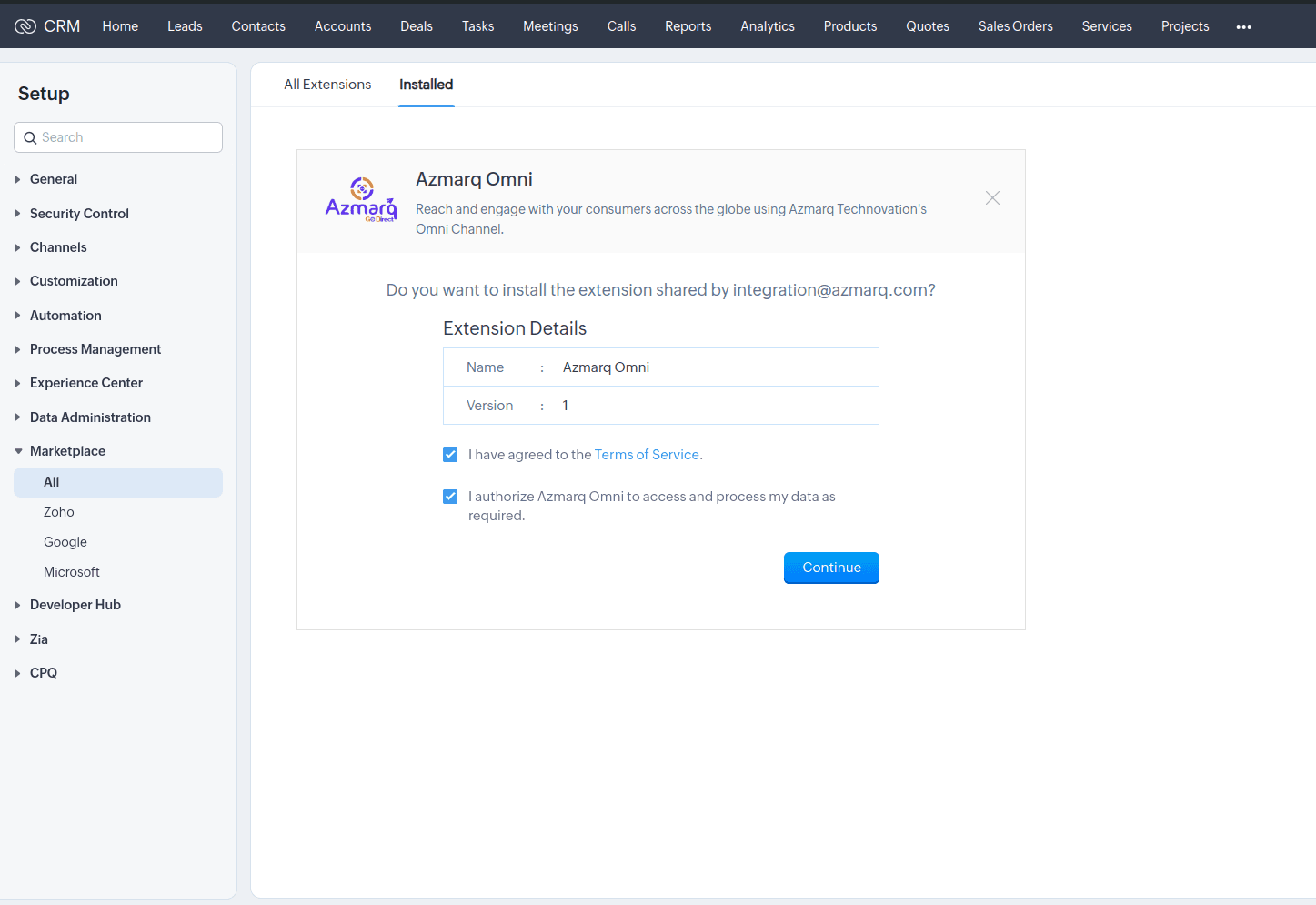
The Azmarq Omni page with the Choose Users/ Profiles section appears.
Select one of the following options:
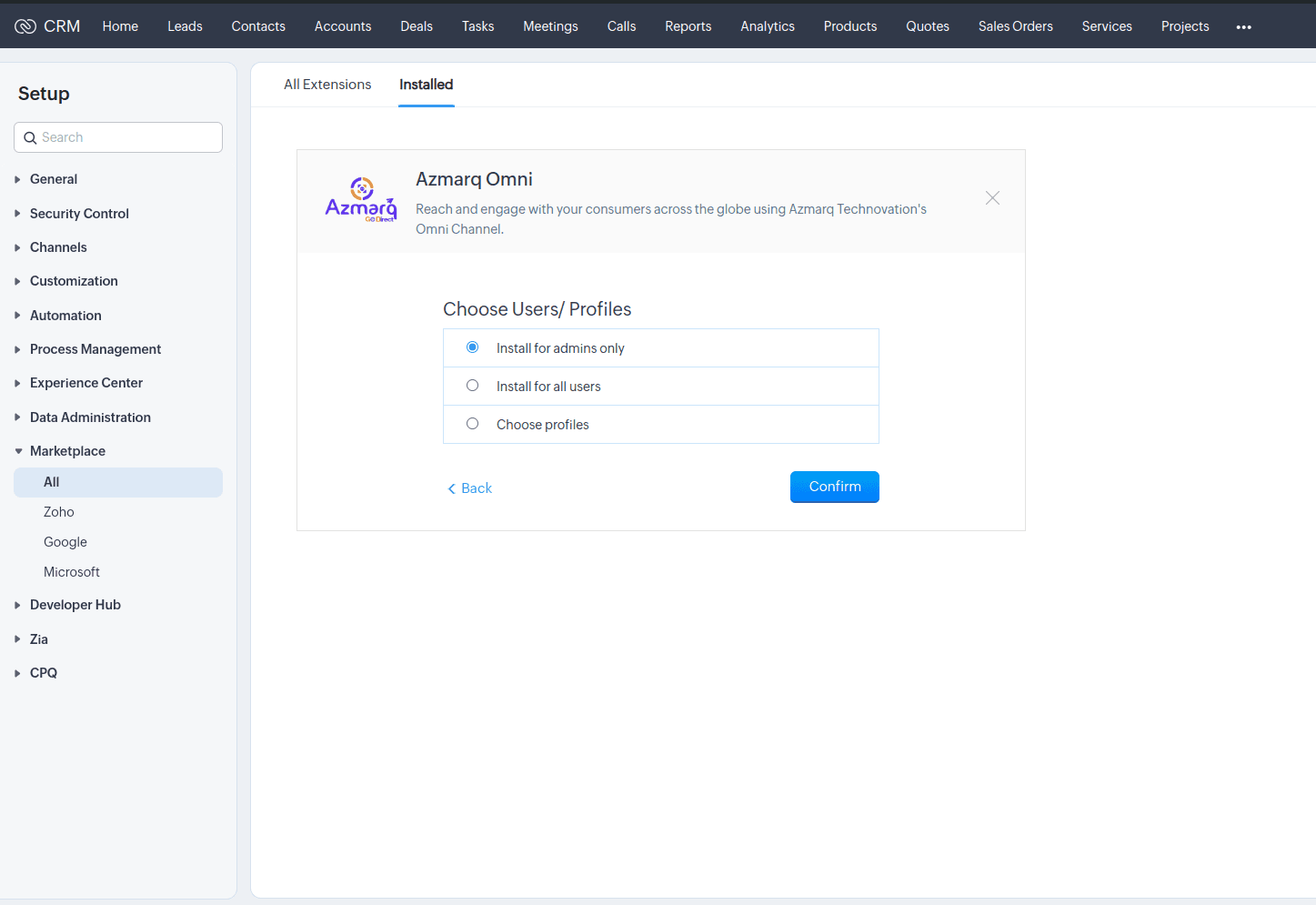
Click Confirm. The plugin installation process continues.
After successful installation, the Azmarq Omni appears you have to login with azmarq omni.
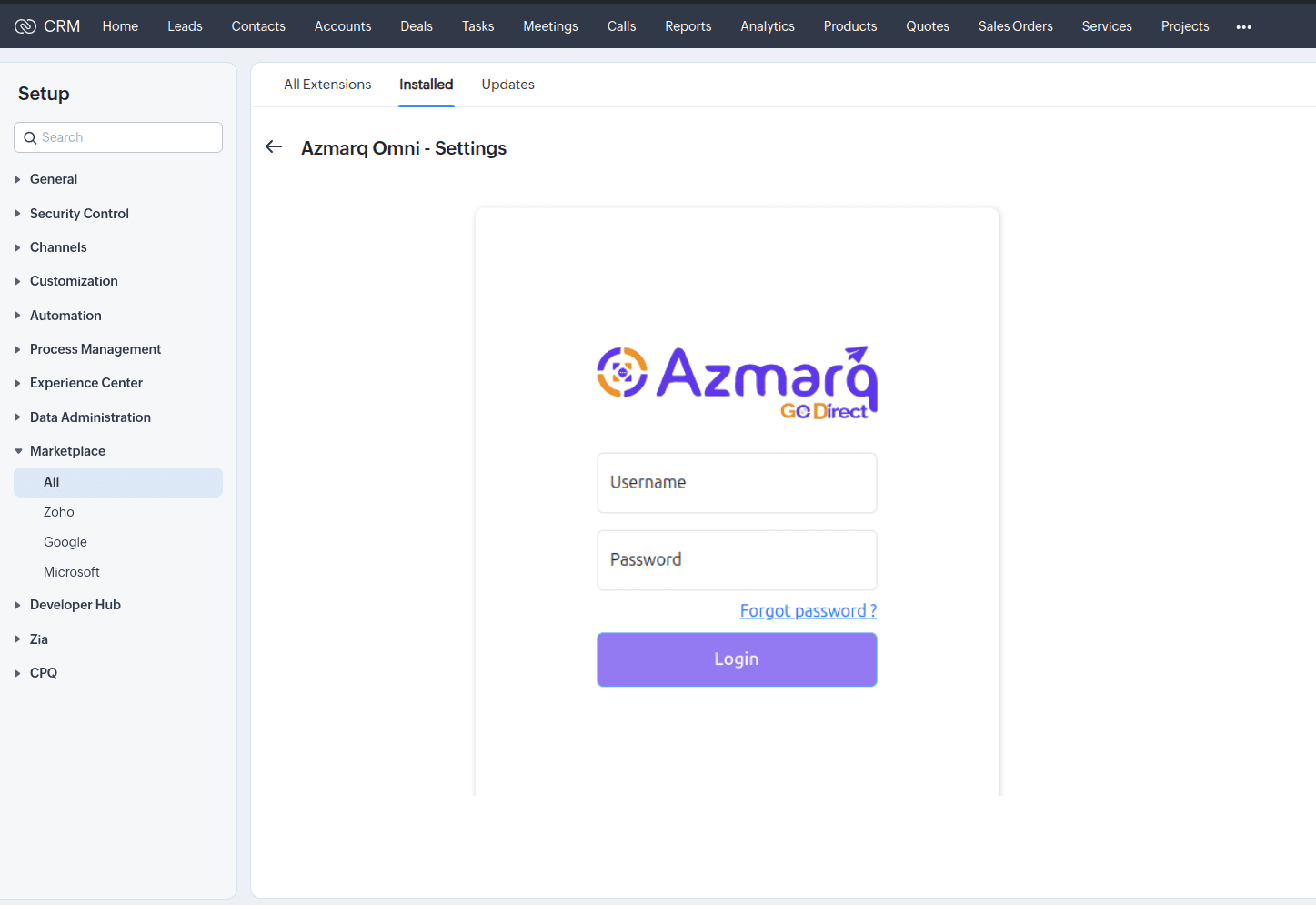
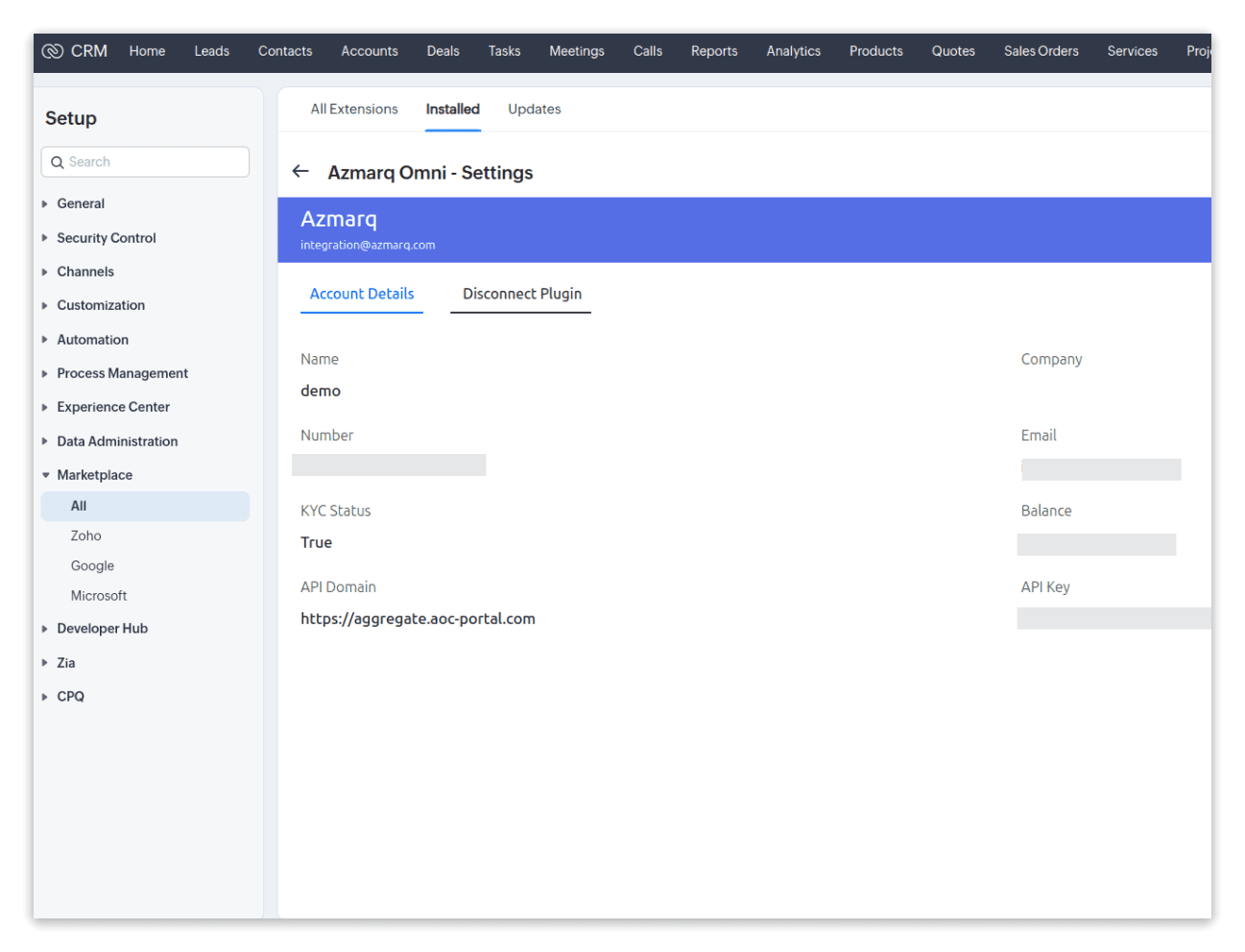
After successful login, the Azmarq Omni - Settings page appears.
Send Whatsapp to Leads, Contacts, or Accounts.
To send Whatsapp to Leads, Contacts, or Accounts, perform the following steps:
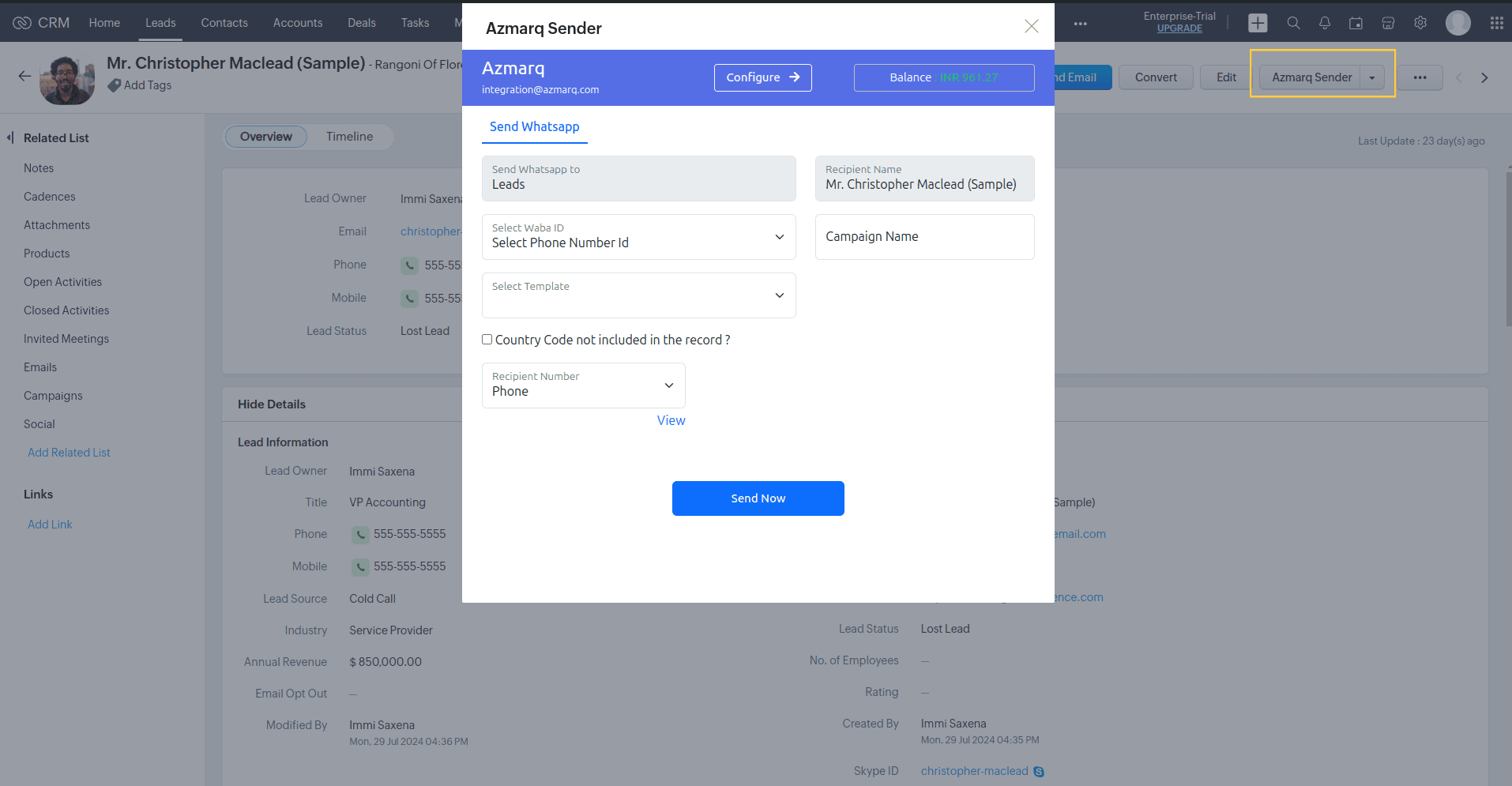
The Send Whatsapp section has the following options:
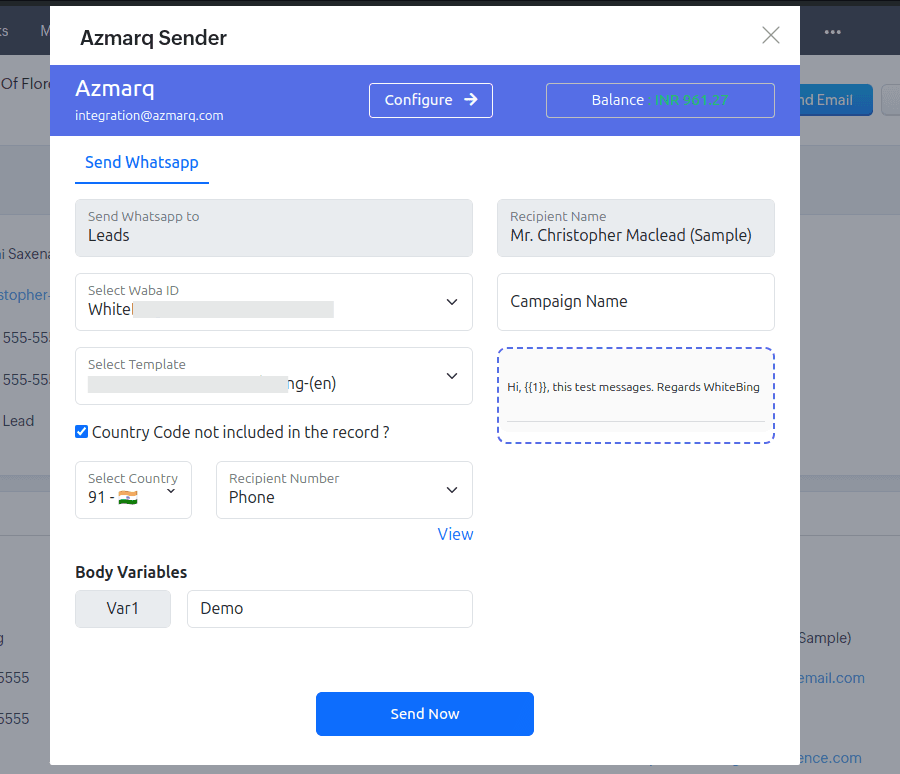
Click Send Now to send an immediate message. The "Whatsapp Request Submitted Successfully" message appears.